
Introduction to MongoDB.
What is MongoDB ?
MongoDB is a rich document oriented NoSQL database. It dosen’t use rows and columns as in relational databases, instead it is an architecture made up of collections and documents.
MongoDB consists with strong query capabilities with aggregations using JavaScript.
It uses SpiderMonkey JavaScript engine.
Document and Collection.
A document in a NoSQL database is corresponds to a row in a SQL database. A group of documents together is known as a collection which roughly similer with a table in a relational database.
Unique Qualities of MongDB.
Apart from being NoSQL, MongoDB consists of few more qualities of its own. such as:
- relatively easy to install and setup.
- uses a BSON (a JSON-like format) to store data.
- easy to map the document objects to application code.
- high scalability and availability
- free and open source.
Installing MongoDB.
Installing MongoDB on a machine is easy and doesn’t require much configuration or setup.
Installing MongoDB on Windows.
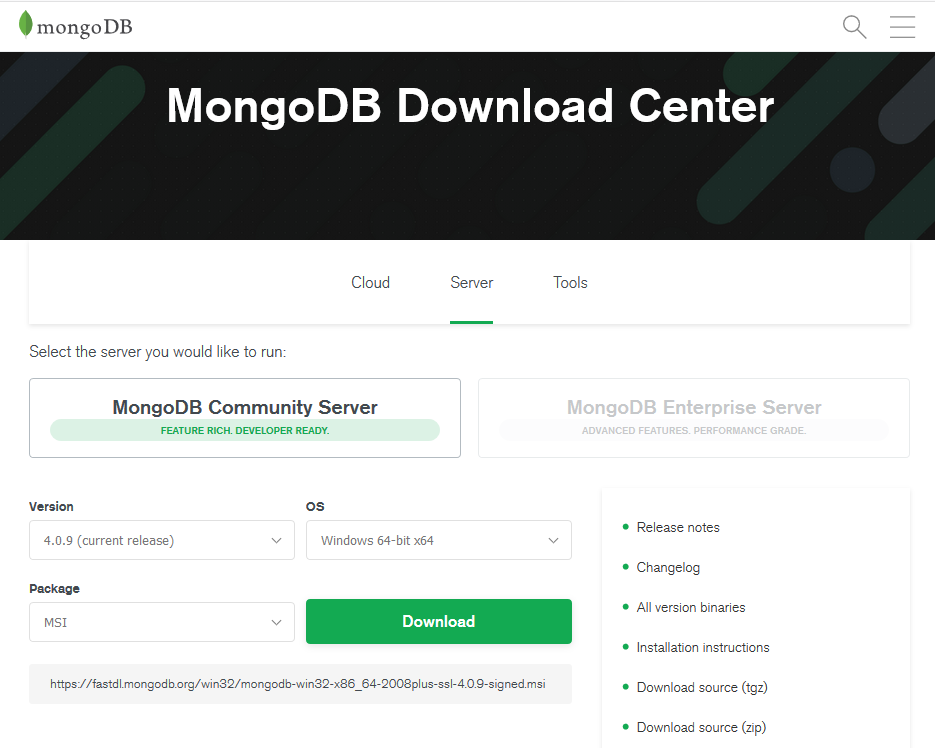
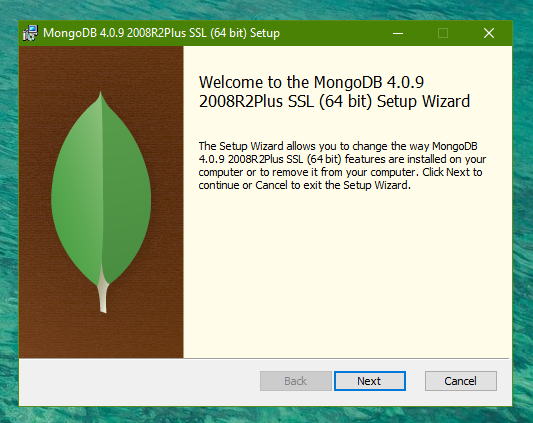
MongoDB setup can be downloaded from here, official MongoDb website. The installation process is a standard installation on windows.
Configuration.
After the installation following directories should be created in-order to store data and log files.
- a directory named ‘MongoDB’ inside the C drive.
- a directory named ‘data’ and a directory named ‘log’ inside the newly created MongoDB directory.
- a directory named ‘db’ inside the data directory
After creating the directories navigate to the installation path where MongoDB was installed and navigate to the bin folder inside it. The default bin folder’s path is as follows;
C:\Program Files\MongoDB\Server\4.0\binIn the bin directory, there are two executables files named,
- mongod
- mogo
mongod stands for ‘Mongo Deamon’, which is a backgroung process used by MongoDB. The main purpose of this executable file is to manage all the MongoDB server tasks.
mongo is a command line shell that can interact with the user.
Now, lets see how we can get this server up and running. 🤔
In-order to do that on windows, first we need to create above mentioned directories.
After creating those directories navigate to the bin directory and enter the following command in the comand prompt.
mongod --directoryperdb -- dbpath C:\MongoDB\data\db --logpath C:\MongoDB\log\mongo.log --logappend --installVoila ! Now your MongoDB server is up and running! 😎
This command specifys some flags which MongoDB should use.
- –directoryperdb – specify MongoDB to use separate directories to store data for each database.
- –dbpath – specify the location where MongoDB should store data
- –logpath – specify MongoDB to send all the log details into a separate log file.
- –logappend – specify MongoDB to append to log files.
Now to run MongoDB enter the following command,
net start MongoDBThereafter, Mongo shell can be easily accessed by entering the command;
mongoAfter running this command you’ll see a ‘connection accepted’ message at the end. This means our installation and configuration is successful.
Is there another way of doing this ?
Yes, if you start the MongoDB server without those previously created directories, you’ll probably get an error.
Therefore, we need to create some directories before running the server.
In this instance, we only need to create two directories named data and db which are the default data directories in MongDB.
The default MongoDB’s data directory path is /data/db on the particular drive.
Therefore, after creating those two directories, head over to the bin folder inside the MongoDB directory and enter the following command in cmd.
mongodVoila ! Now your MongoDB server is up and running! 😎
As the previous instance, here also in-order to work with this server, we need a mediator. Therefore, to fullfil this requirement we need to open another comand window inside the bin folder and execute the following command;
mongoAs earlier, after running this command, you’ll see a ‘connection accepted’ message at the end of the shell which we ran mongod command ( server ). This means our installation and configuration is successful. 🥳
What is MongoDB Compass ?
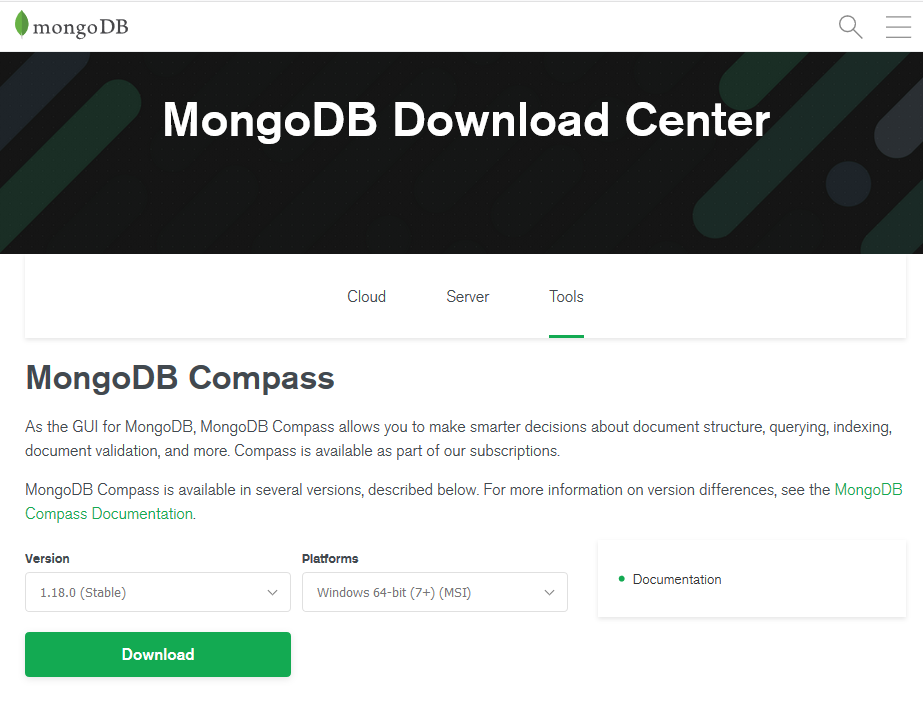
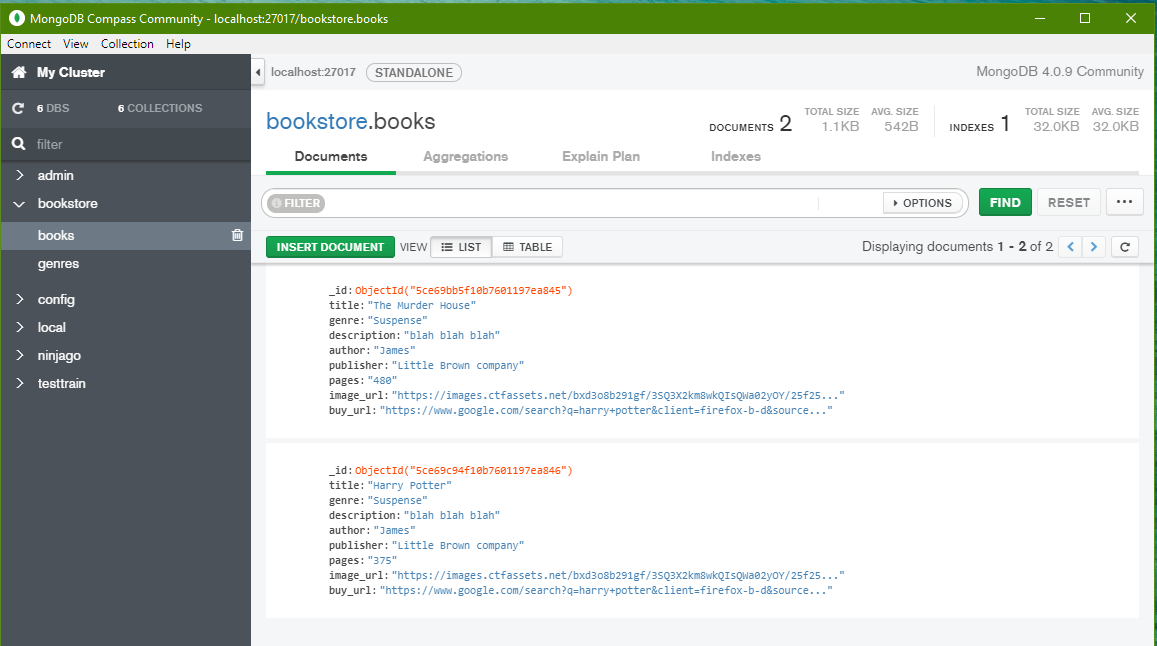
Rather than working with mongo shell we can use a graphical representation of the databases using ‘MongoDB Compass’.
MongoDB Compass is an GUI for MongoDB. Which visually explore and manipulate your data.
MongoDB Comapss can be easily downloaded from here.
And thats it for the Introduction to MongoDB. Hope you have got the basic idea of what MongoDB is, about its core features and how to get start with MongoDB and MongoDB Compass.
Thanks for reading! ❤️
If you have any queries regarding this article, feel free to comment out in the comment section below or contact me on twitter.


